


Step On How To Register An Account.
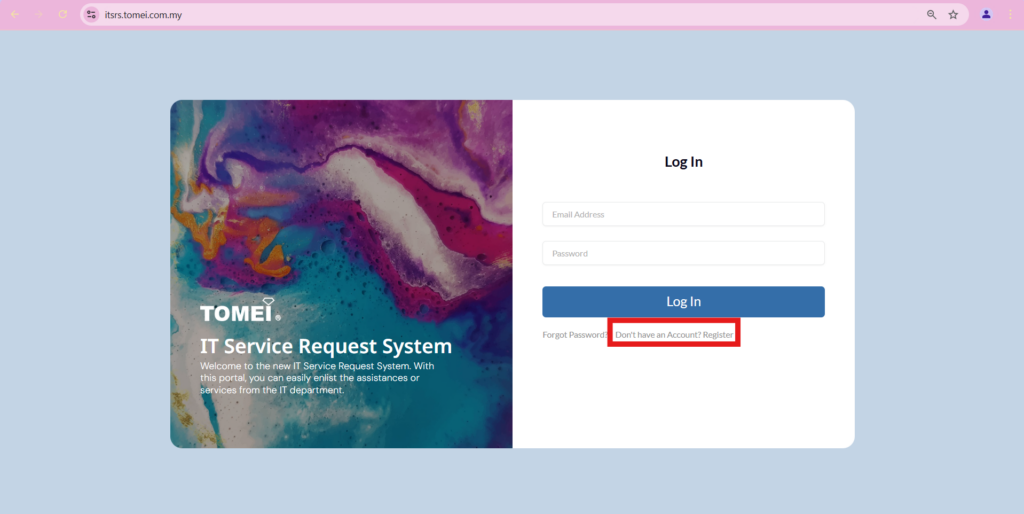
Step 1: Go to this link. Click on ‘Register’ account.
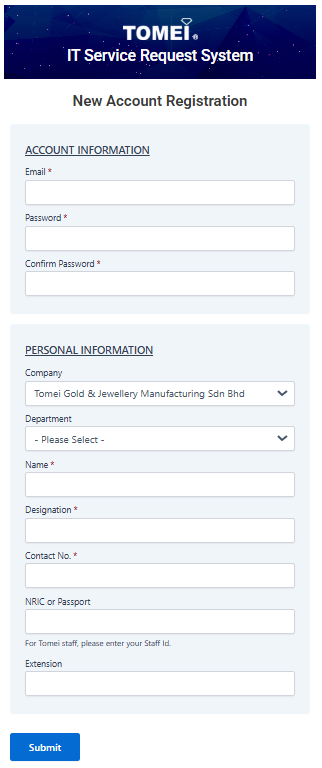
Step 2: Fill in all the details and click ‘Submit’ button.
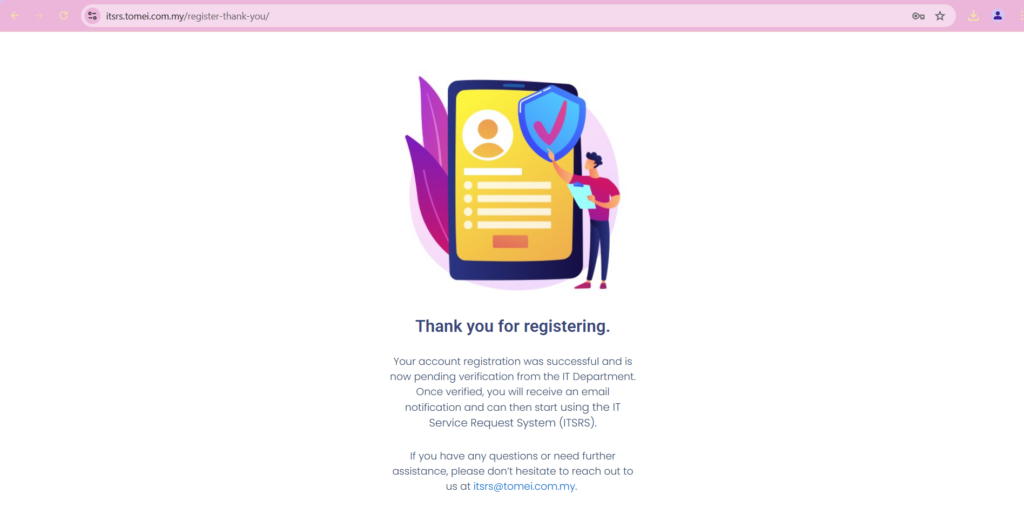
Step 3: Once submit details, this page will be display state your account is now pending verification from IT Team. Once verified, you will get an email notification. Then, you can start using the IT Service Request System (ITSRS).
Now, you are successfully created an account.
Step On How To Login & Logout ITSRS.
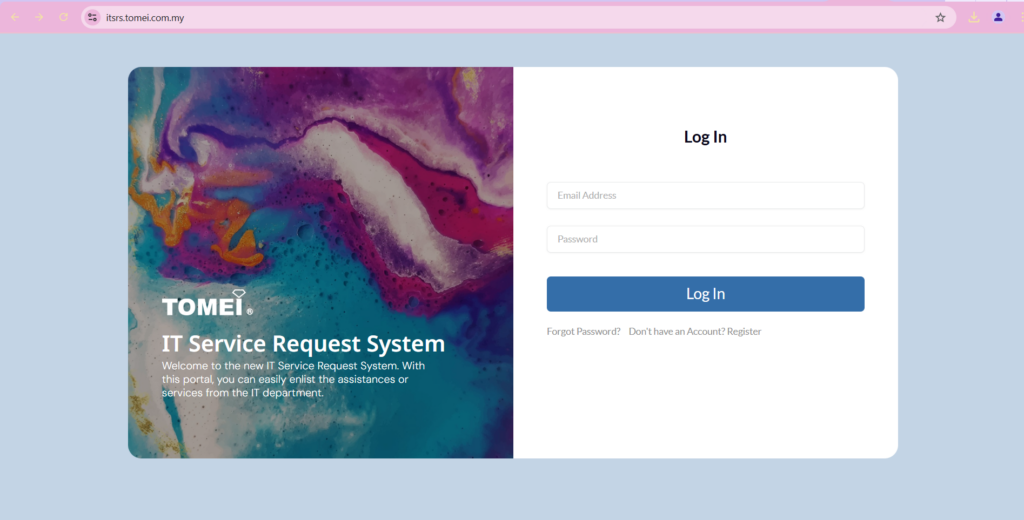
Step 1: Go to the login page here. Enter your email and password. Then click ‘Login’ button.
Now, you are successfully login to the system.
Step 2: You can click ‘Logout’ at the top right to logout from the system.
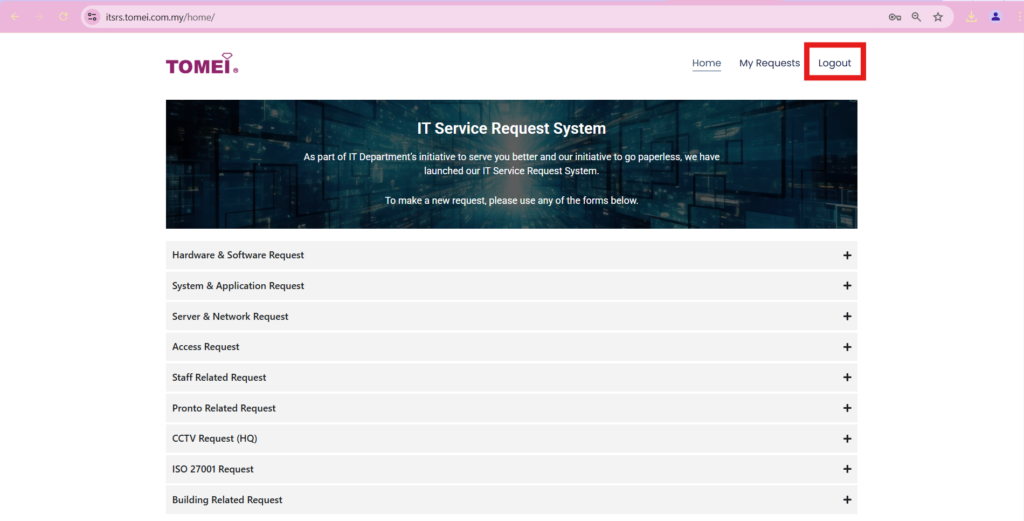
Now, you are successfully logout from the system.
Step On How To Submit A Request.
Step 1: After login to the IT Service Request system, the main page will be display as shown as figure below. There have a several types of IT Service Request. You may select based on your desired request.
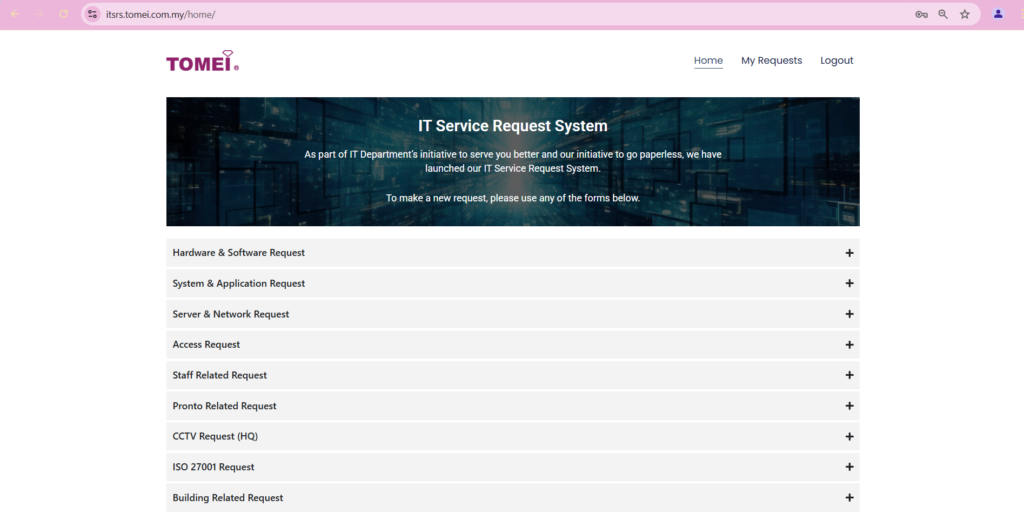
Step 2: You can click on ‘+’ icon to expand the menu of service request to choose your type of request.
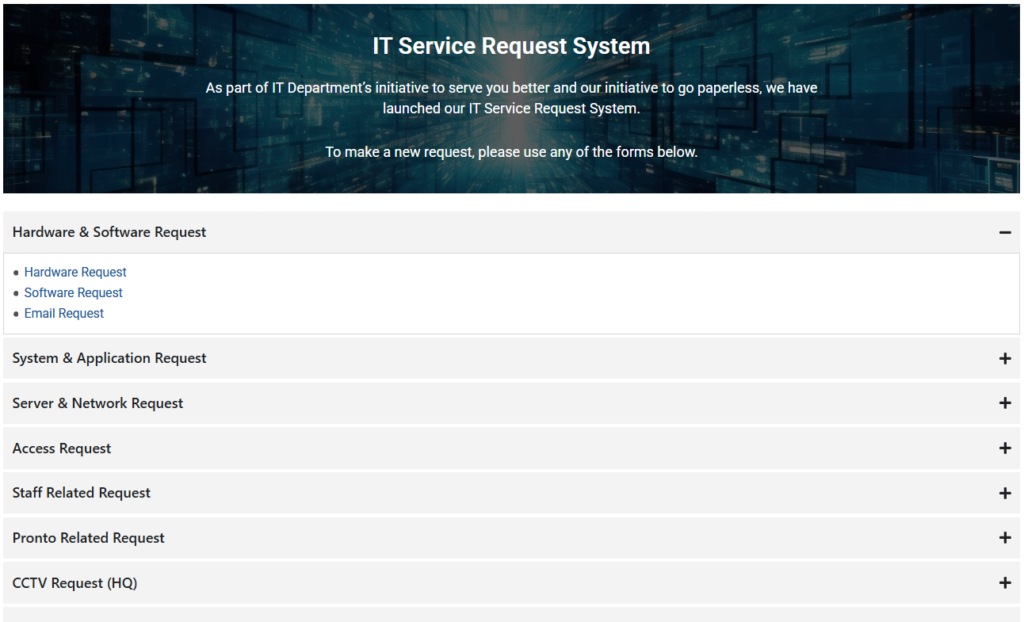
Then, you need to fill up the form based on request you choose and submit. Once submit you will get a follow up email regarding your IT service request until it complete.
Step On How To Reset Your Password.
Step 1: Go to the login page and click ‘Forgot Password?’.
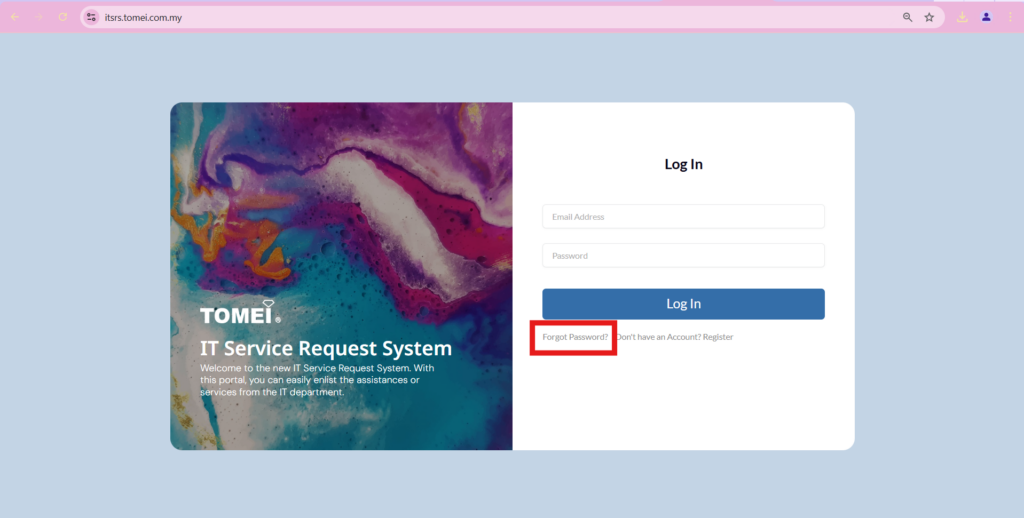
Step 2: Enter your email and click ‘Email Reset Link’ button.
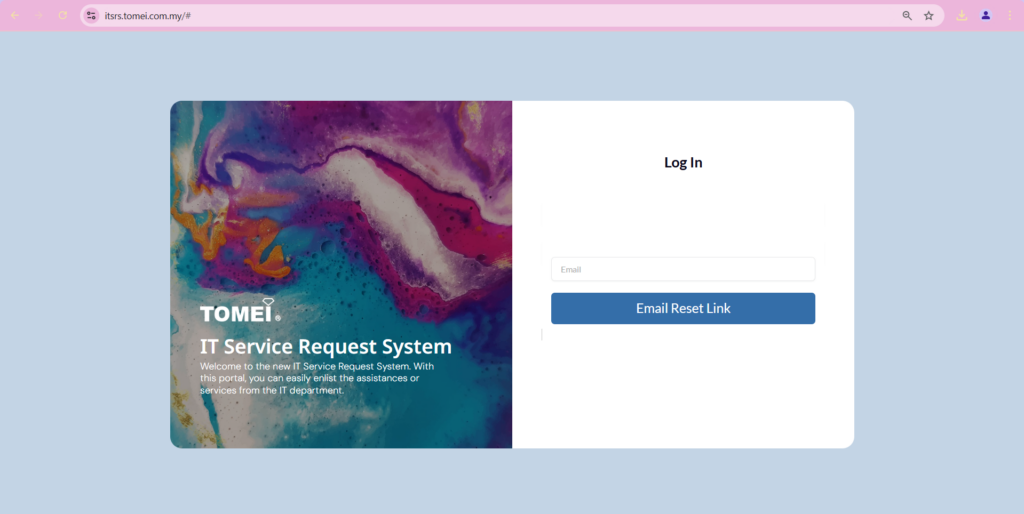
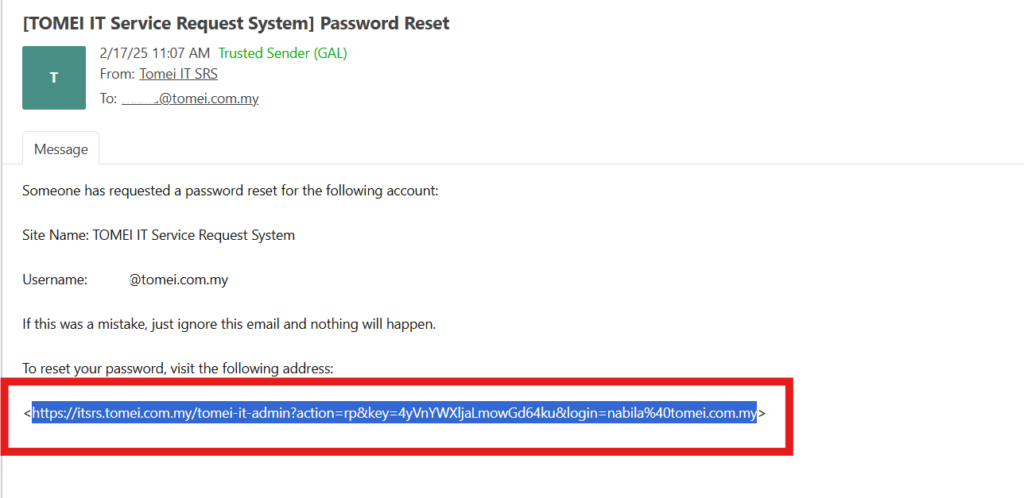
Step 3: You will get an email from itsrs@tomei.com.my to reset your password. Copy the link without symbol ‘<>’ then paste and Go in your browser.
Step 4: Enter your new password or you can auto generate a new password by click ‘Generate Password’ button. Then, click ‘Save Password’ button.
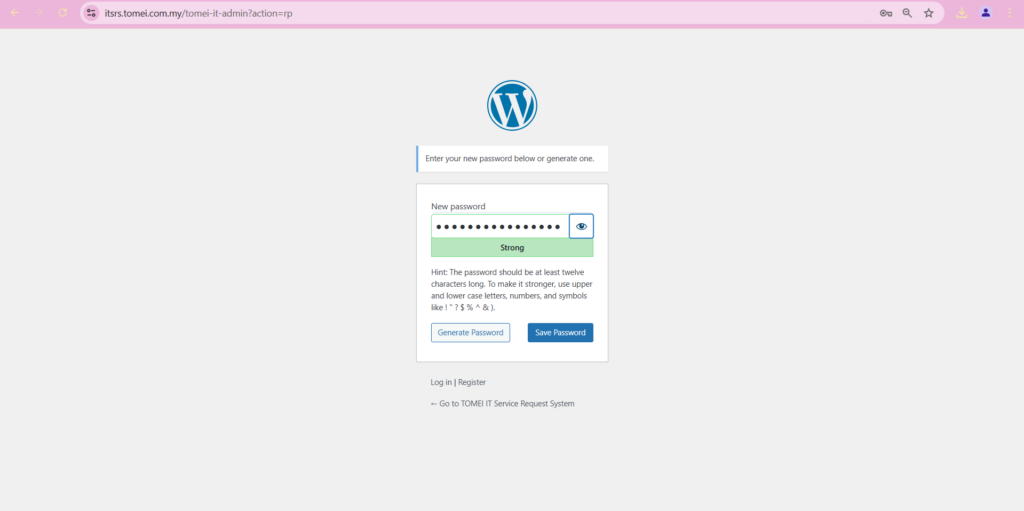
Now, you are successfully reset your password.